Dictionary

1. Account Management using Dictionary

Account Create, deposit money in the account, withdraw money, display the account, and delete/close the account. This can be used as a project by adding some more functionalities

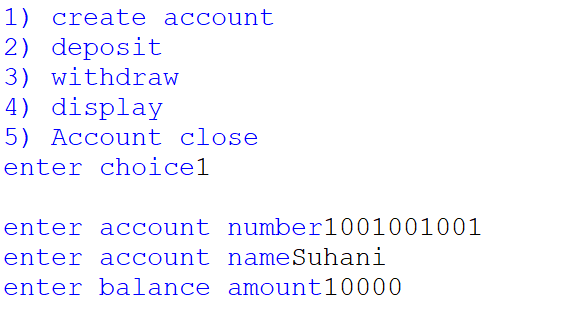
Create Account

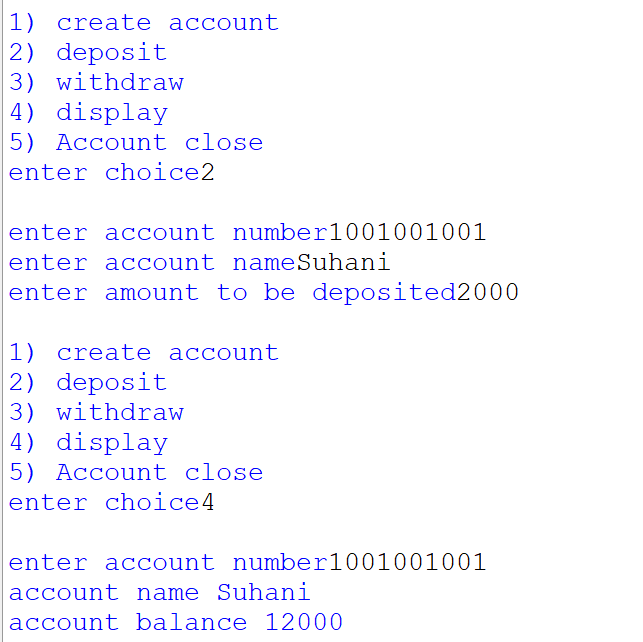
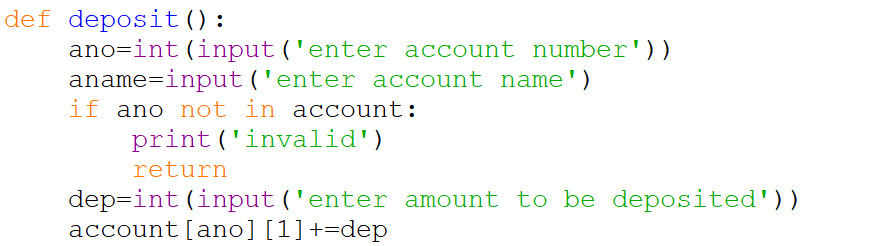
Deposit Money

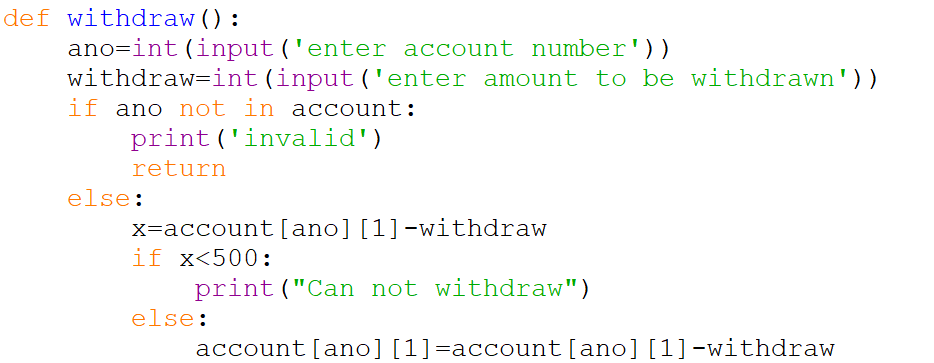
Withdraw Money

Display Account

Close/Delete Account

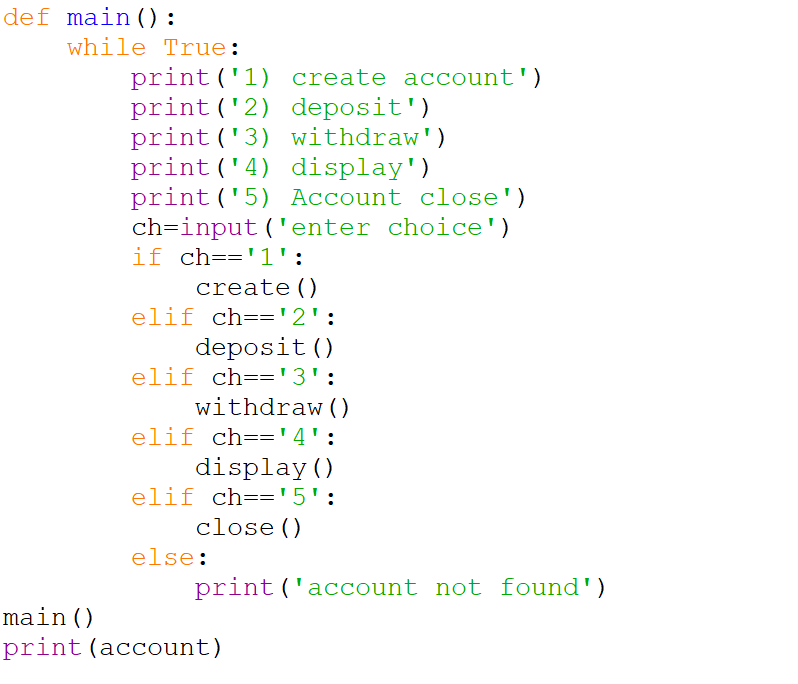
Menu

Output

Create Account

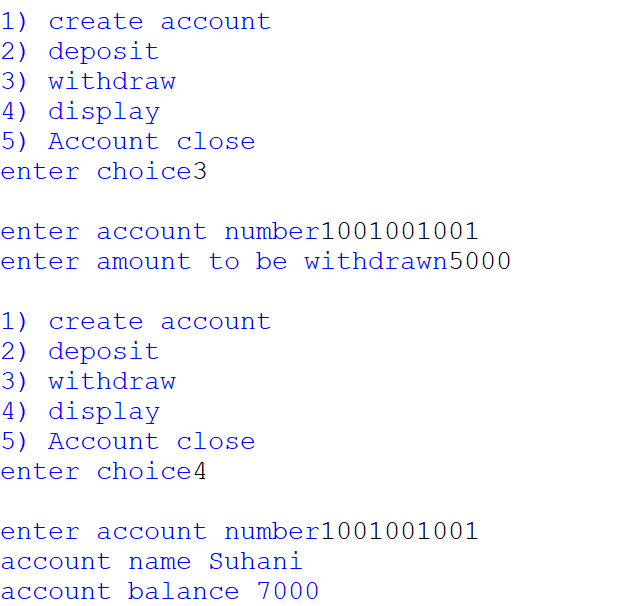
Display Account

Deposit Money

Invalid Account

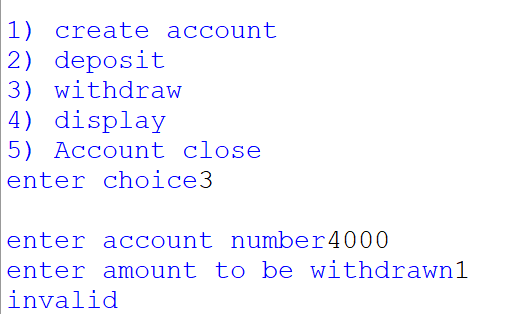
Withdraw Money

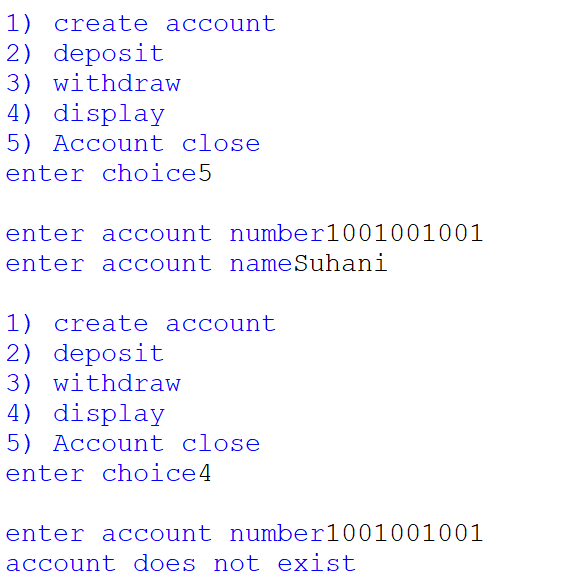
Account Close or Delete

Python: Tuple

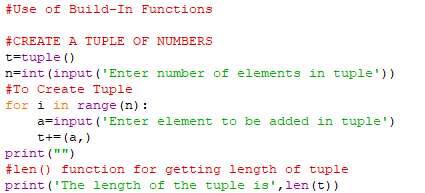
1. Length of tuple

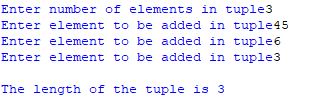
Output

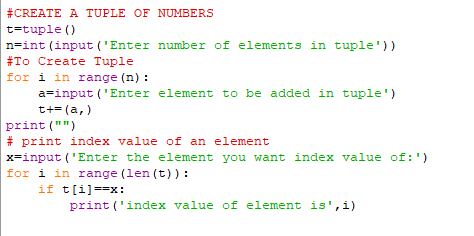
2. Index value of an element in a tuple

Output

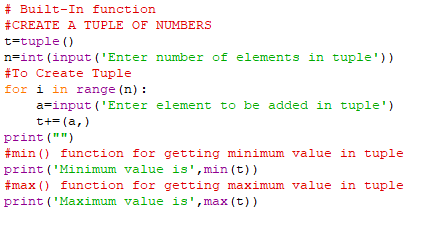
3. Minimum and Maximum in tuple

Output

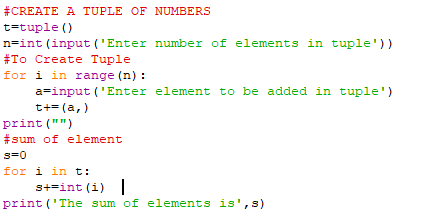
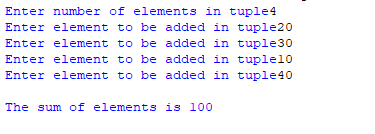
4. Sum of elements in a tuple

Output

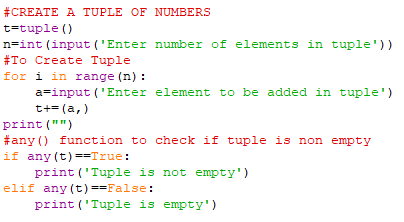
5. To check if the tuple is empty

Output

6. To delete an element from a tuple

Output

Python: String Programs

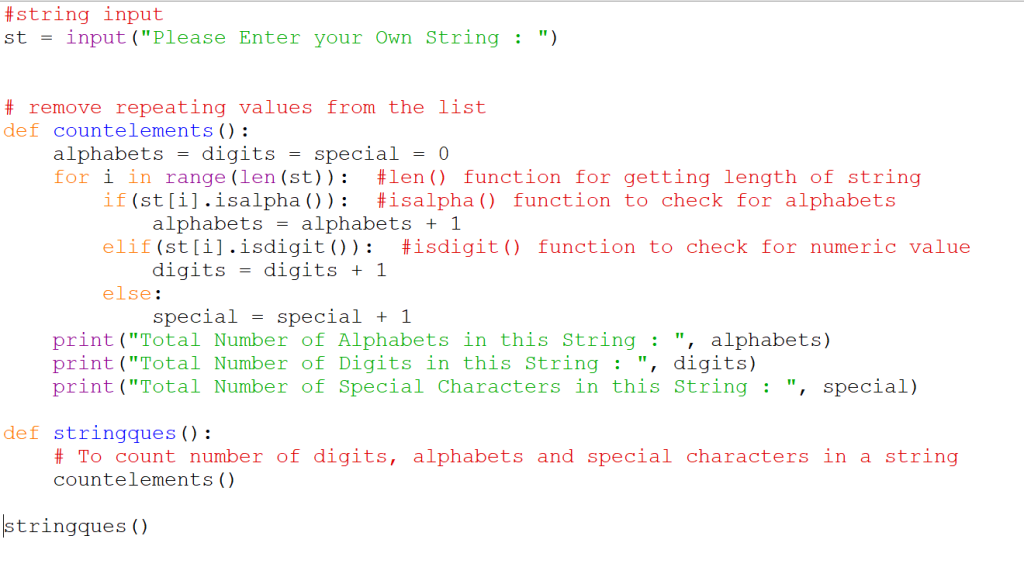
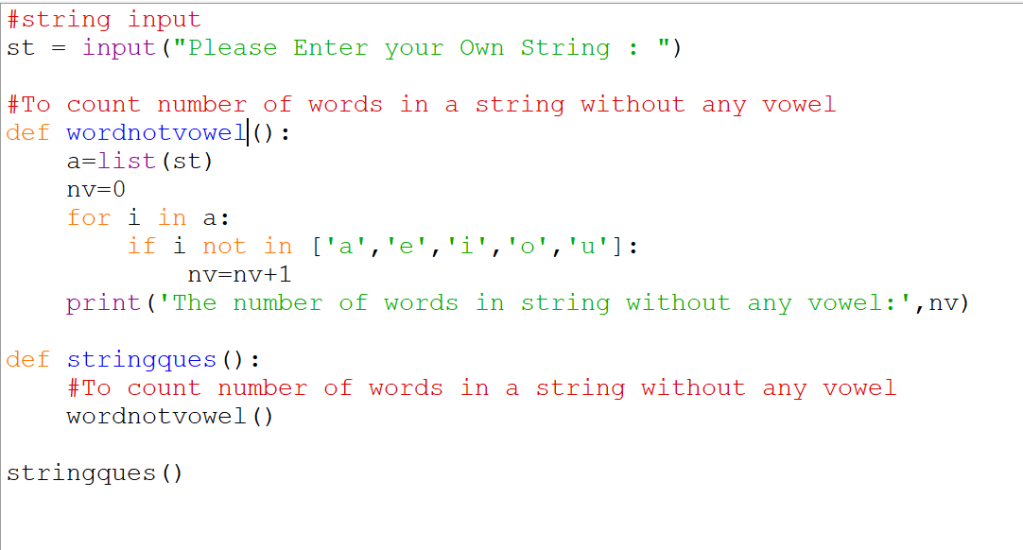
1. Count Digits, Alphabets, and special characters in the string

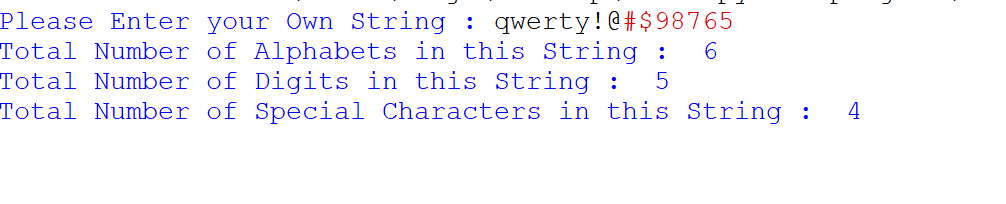
Output

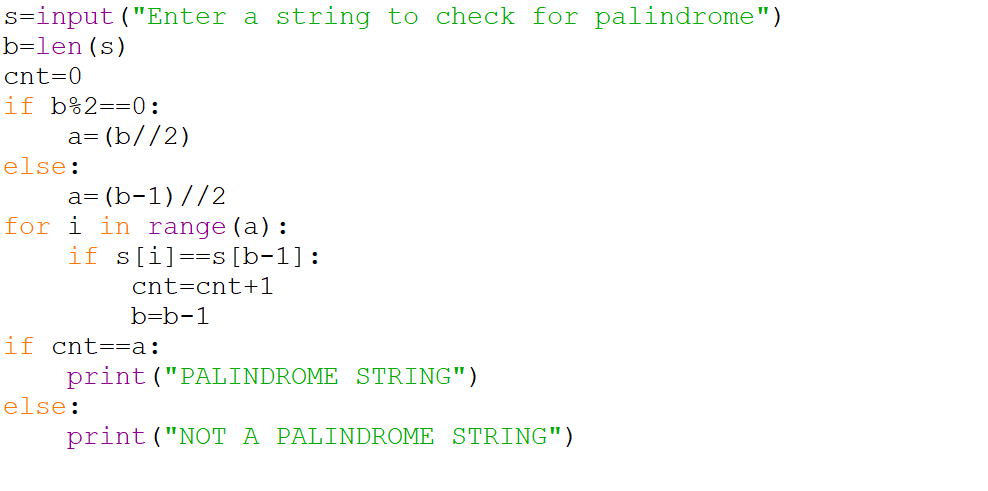
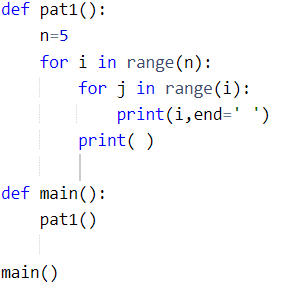
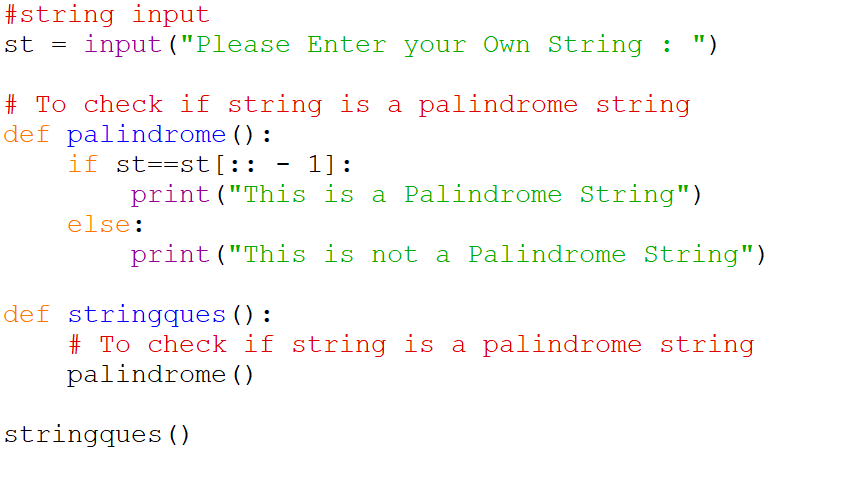
2. To check if the string is a palindrome string

Output

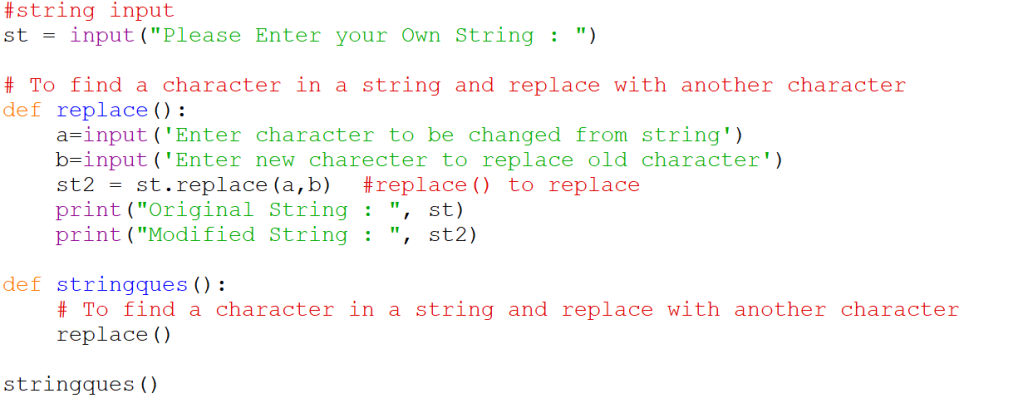
3. Find a character in a string and replace it with another character

Output

4. Find a character in a string and replace it with another character

Output

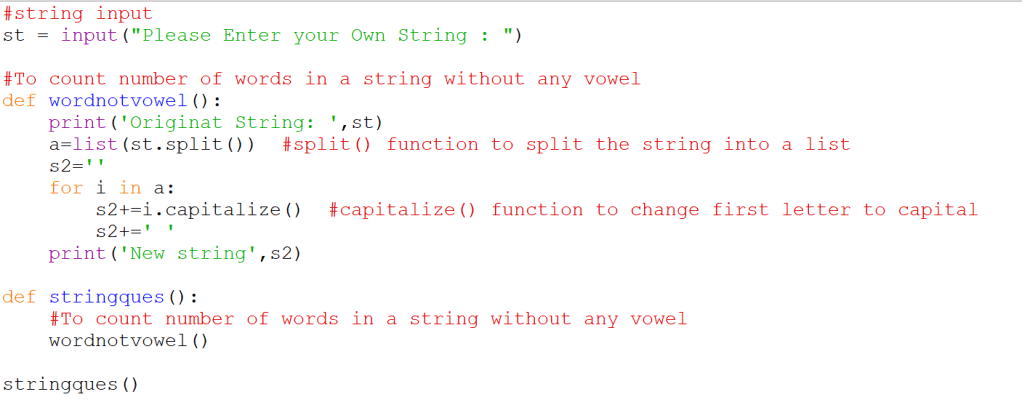
5. change the first letter of every word in a sentence to capitals

Output

How to Convert Scratch game to HTML

After the game design, it is always a question in mind how to publicize and add the game designed by me as a web page

The answer is here:

  • Open “My stuff” in scratch where you have your designed games.
  • “My stuff” will display a list of game projects done by you.
  • Click and open your project which you wish to convert to an HTML page
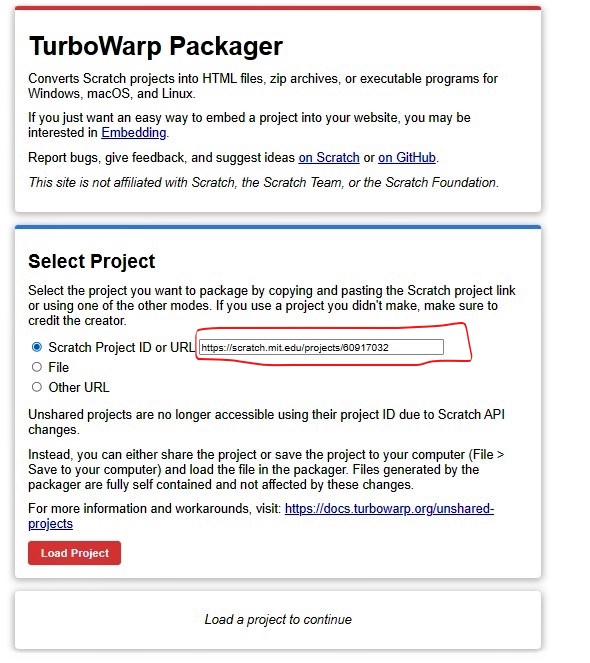
  • Then copy the URL of the project which contains a scratch project id. See image below
  • All the above-mentioned URL work in almost the same way here explained through the last “TurboWrap” link

TurboWrap

  • The TurboWrap page will look like this
  • In Select Project, enter the project URL or scratch project id which you would like to convert to an HTML page.
  • Click the “Load Project” button
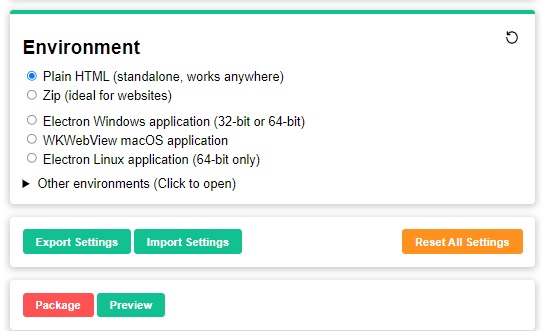
  • In the environment, click HTML as shown in Figure 3.
  • Click on the preview button, if would like to see how the HTML page will look in play mode
  • after verifying, click on the package button to download the scratch project as HTML page.

FINALLY, HTML PAGE Will show Scratch Project in Play mode in HTML Page

Happy Learning

HKow-du(r)

Cat Traveling the World

Okiii let’s start making our first animation. Here there is a cat walking and going to different destinations. It also makes a really fun sound.

STEPS –

  1. Open scratch and click on create.
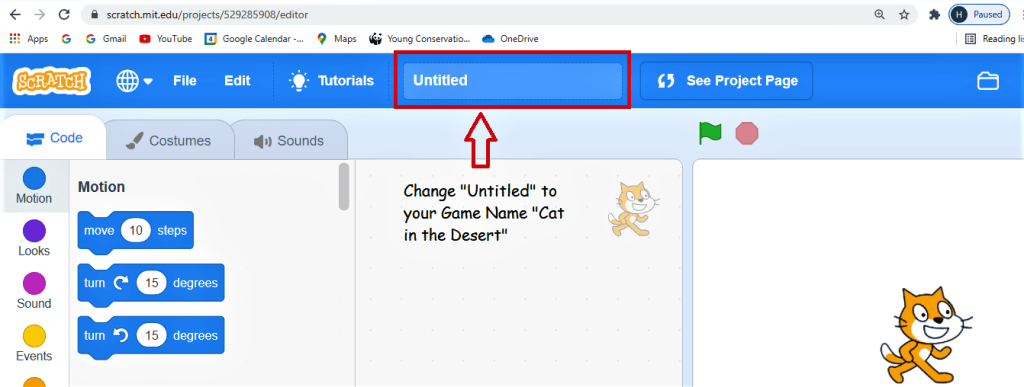
  2. Change the name from where it says untitled to “Cat Travels the World”

3. Add the mall and the beach backdrop.

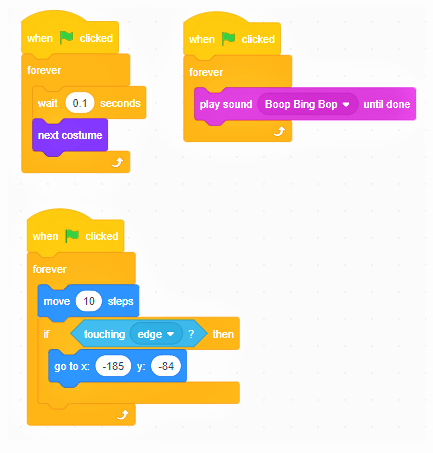
4. Go to the events tab and drag “when the green flag is clicked” to the code window. Go to the control tab and connect Forever loop to the previous code.

5. Go to the control tab and put “wait 0.1 sec” inside the forever loop. Go to the looks tab and connect “next costume” under it.

6. Go to the events tab and drag “when the green flag is clicked” to the code window. Go to the control tab and connect Forever loop to the previous code. Go to the sound tab and put “play sound boop bing pop” inside the forever loop.

7. Go to the events tab and drag “when the green flag is clicked” to the code window. Go to the control tab and connect Forever loop to the previous code. Go to the motion tab and put “move 10 steps” inside the forever loop.

8. Go to the control tab and insert if then statement below the move code inside the forever loop. Go to the sensing tab and put “touching edge” between if and then.

9. Go to the motion tab and connect “go to x= and y=” to it. Click on the backdrop under where it says stage.

Code for the cat

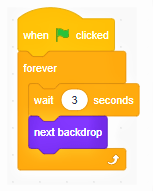
10. Go to the events tab and drag “when the green flag is clicked” to the code window. Go to the control tab and connect Forever loop to the previous code.

11. Go to the control tab and put “wait 3 sec” inside the forever loop. Go to the looks tab and connect “next backdrop” to it.

code for the backdrops

11. That’s it your first animation is complete.