SPRITES –
- Zombie- It moves up and down continuously and says “Brains”.
- 2 Bats- They move in a zig-zag movement up and straight movement down.
- Girl- It moves back and fourth.
- It moves back and fourth.
- It reacts to loosing by changing colour and screaming.
- It reacts to winning by a fairy dust sound.
- Key
STEPS –
- Open scratch and click on create.
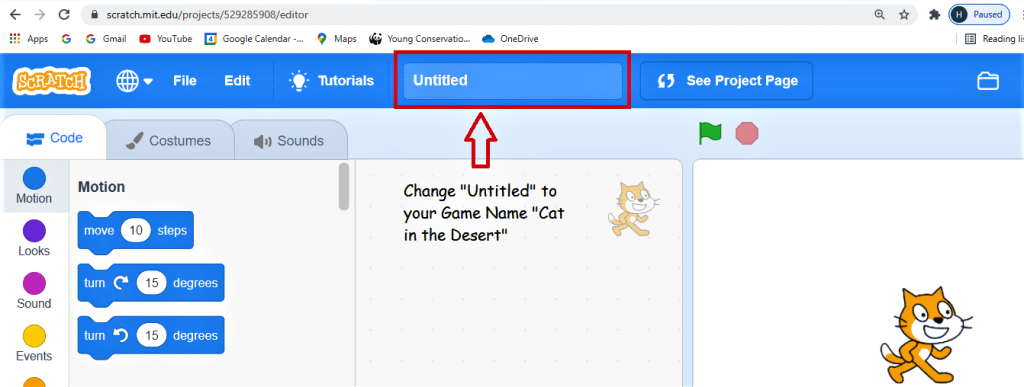
- Change the name from where it says untitled to Halloween Game.
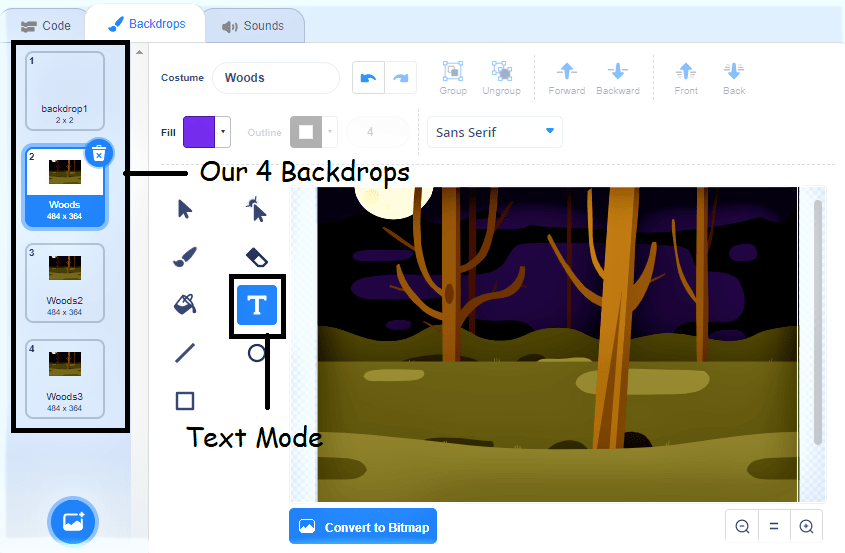
3. Go to add backdrop and choose the woods backdrop and do the same three more times.
4. You can see all the backdrops in the backdrop tab.
5. Choose the first woods backdrop in which we have to put instructions to play.
6. Click on the text button [T].
7. Choose a colour of text from the fill button.
8. Type the instructions you want to add.
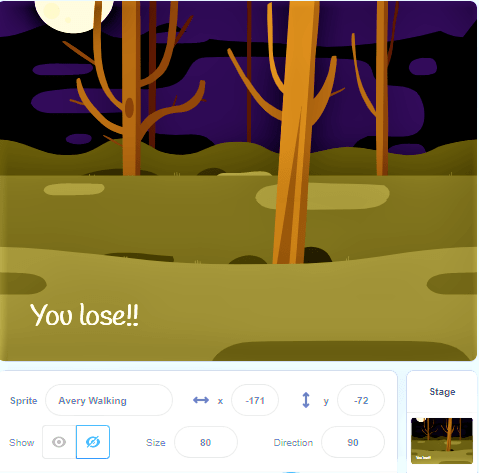
9. Choose the third wood background in which we lost.
10. Change the font and type “to lose” in the left corner.
11. Choose the backdrop 1 which is a blank white screen.
12. Now you can customize it yourself by either putting colourful dots and shapes or by downloading and backdrop from internet and uploading it.
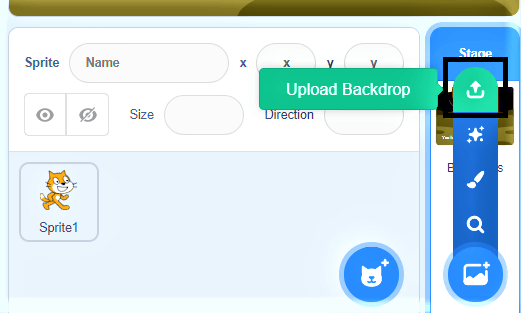
13. Type the text “You win”.
14. Select the second wood backdrop. Delete the cat sprite. Add a bat sprite and make them small also upload the zombie sprite.
15. Add the girl walking sprite and the key sprite and reduce their sizes also.
16. Click on the key sprite, go to the motion tab and click on turn 15 degrees until it is vertical.
17. Arrange all the sprites to their desired positions.
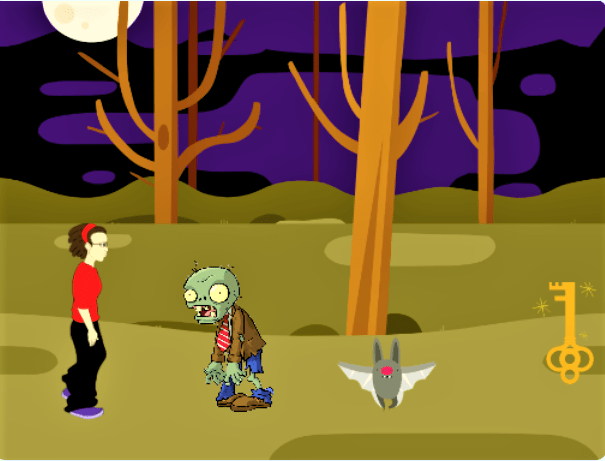
18. Click on the Zombie sprite.
19. Go to the events tab and drag “when green flag is clicked” to the coding screen.
20. Go to the motion tab and connect “go to x= and y=” to the previous code.
21. Move the zombie to the top of the screen. Go to the motion tab and connect “Glide 2 secs to x= and y=” to code.
22. Move zombie back to original position and Go to the motion tab and connect “Glide 2 secs to x= and y=” to code.
23. Go to the sound tab and select “play sound” and record yourself saying brains and then choose it from the small arrow.
24. Put a forever Code around glide and sound.
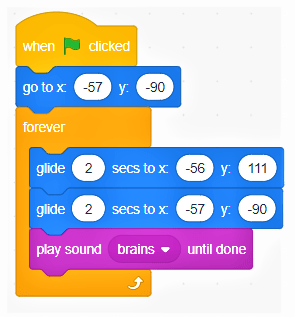
25. Click on the bat and go to the events tab and drag “when the green flag is clicked to the code window.
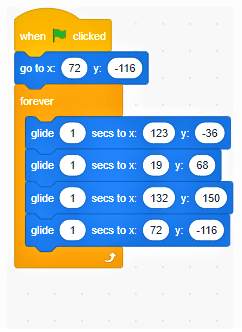
26. Go to the motion tab and select “Go to x= and y=” and they will show the initial values of the bat.ie. x=72 and y=(-116).Connect it to previous code.
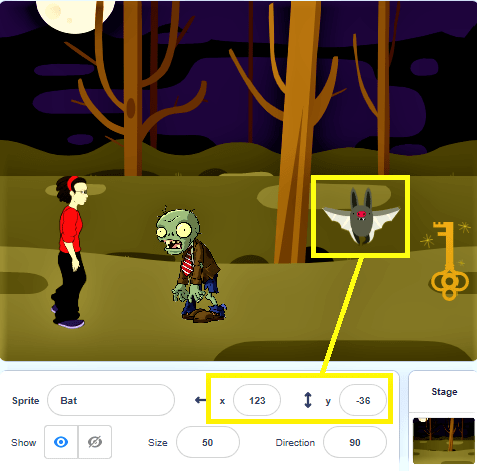
27. Move the bat diagonally towards the right side and then go to the motion tab and connect “glide 1 sec to x=123 and y=(-36)” to the previous code.
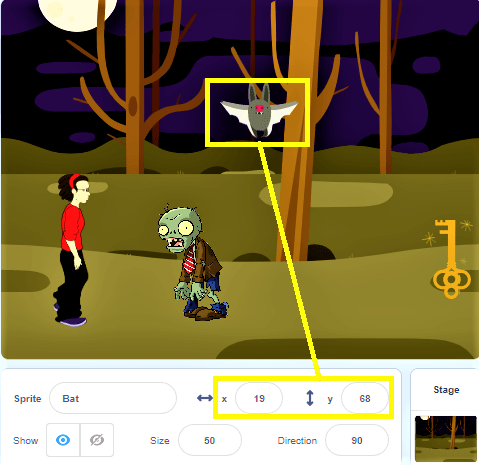
28. Move the bat diagonally towards the left side and then go to the motion tab and connect “glide 1 sec to x=19 and y=68” to the previous code.
29. Move the bat diagonally towards the right side and then go to the motion tab and connect “glide 1 sec to x=132 and y=150” to the previous code.
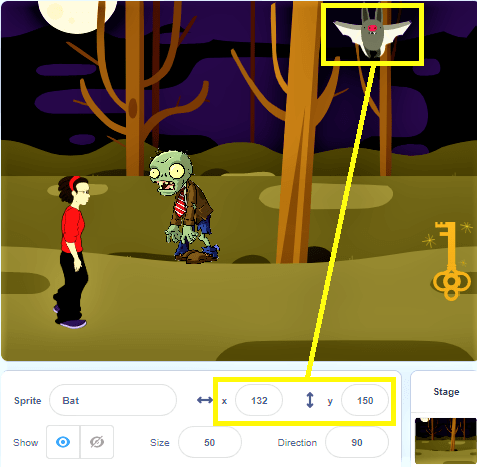
30. Move the bat diagonally towards the left side and then go to the motion tab and connect “glide 1 sec to x=72 and y=(-116)” to the previous code.
31. Go to the control tab and drag forever loop to the code screen. Put all the Glide statements inside the forever loop.
32. Now as we wanted two bat sprites so we will right click on the bat 1 sprite and click on duplicate.
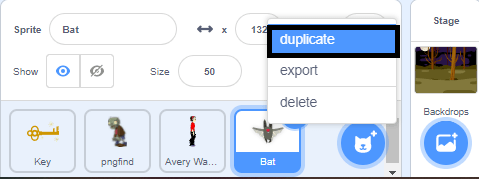
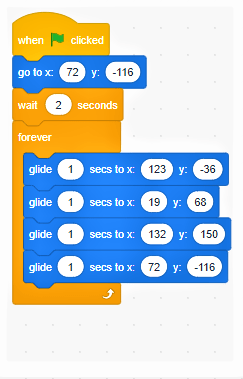
33. Now bat 2 sprite has the same code as bat 1 sprite. So they will move together but we want them to have different movements. So, we will click on the bat 2 sprite and go to the control tab and connect “wait 2 sec” above the forever loop.
34. Click on the girl and go to the events tab and drag “when the green flag is clicked” to the code screen.
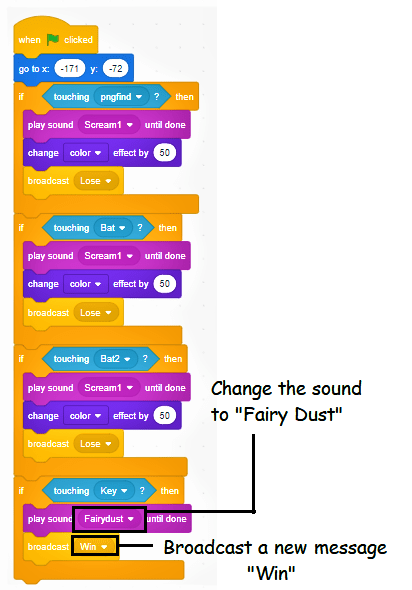
35. Go to the motion tab and connect “go to x=(-171) and y=(-72)” to the previous code.
36. Go to the control tab and select if then statement. Go to the sensing tab and put “touching” between if and then.
37. Go to the sound tab and put “play sound” in the then statement. Go to the looks tab and connect “change colour effect by 50” to it. Also go to the events tab and connect “Broadcast message” in the then statement”.
38. Change the message to “lose”. Right click on this if then statement and click duplicate. Do this two more time. Join all the if then statements.
39. Now in the key touching statement change the sound to “fairy dust”, Delete the change colour statement by right clicking and let it broadcast a new message “Win”.
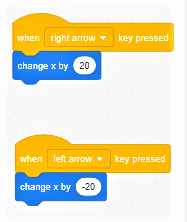
40. Now we have to distinguish the girl motion.ie. right and left. Go to the events tab and Drag “when the right arrow key pressed” to the code window.
41. Go to the motion tab and connect “change by 20” to the previous code. Go to the events tab and Drag “when the left arrow key pressed” to the code window.
42. Go to the motion tab and connect “change by -20” to the previous code.
43. Go to the Control tab and put the forever loop around all the if statements.
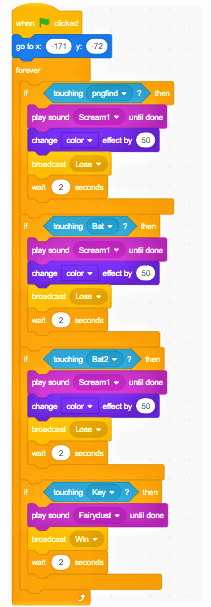
44. Our code for the girl sprite is complete.
45. Save your progress till now.
 ░▒▓█►─═ нIŕᗩ𝔩 𝐚𝓡ᗝⓡค ═─◄█▓▒░
You must be logged in to post a comment.